Cog & Clock: Battle Tracker › How each tab works › Army
Tab 1 of 5 · Cog & Clock
The Army tab
What this tab is for
The Army tab holds your unit cards. You make a card once for each kind of model, then add it to a game.
Tap a heading below to open or close it. The page remembers which ones you left open.
When you'd use this tab
Use the Army tab when:
- Before the game, you make cards for the models you own.
- You pick which cards go into tonight's army.
- A friend wants your army list on their phone.
- You want to print QR stickers for your model bases.
Why use the app for this
Doing it by hand works, but the app makes it easier:
- No stack of paper cards to carry or lose.
- You type each card once. You can use it in every game.
- You can share a card or a whole army with a QR code or a file.
- The app ships no game data. You type your own stats, in your own words.
How to use it, step by step
Try it: make a card for a big robot and add it for Player 1.
- Open the Army tab. Tap + Card at the top right.
- Type a name, like Iron Ox. Under Type, tap Mech.
- Pick a color and type a short base label, like OX1.
- Fill in the stats, like DEF 12 and ARM 18.
- Under Damage tracker, pick HP, Track, Grid or Spiral and set its size. Under In armies, tap an army to put the card in it. Tap Save.
- Back on the Army tab, tap the card to open it. Tap + Player 1. The app says “Added”.
Where things are on the screen
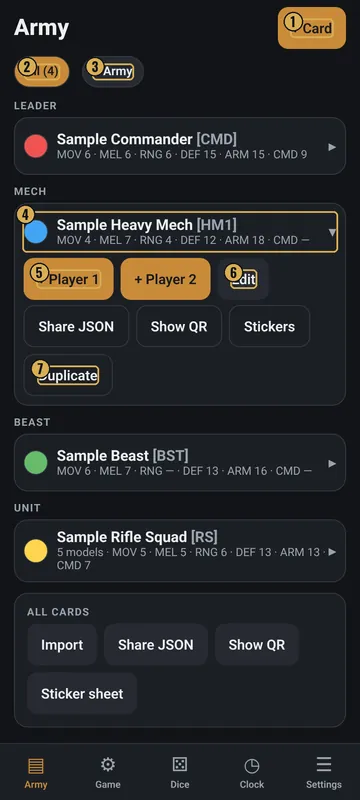
The numbers on the pictures match the list under each picture. Gold boxes show where each thing is.
- + Card makes a new card
- All cards / your armies
- + Army
- Tap a card to open it
- Add to Player 1 or 2
- Edit
- Share, QR, stickers, copy
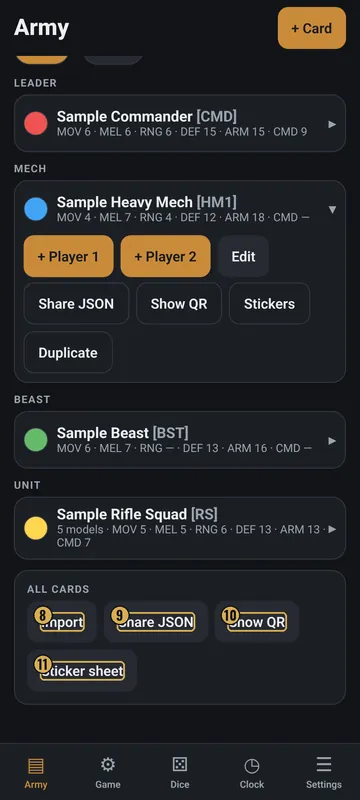
- Import
- Share JSON
- Show QR
- Sticker sheet
Top
- + Card
- The gold button at the top right. Makes a new card.
- All / army chips
- All (4) shows every card. Each army you make gets its own chip. Long-press an army chip to rename it.
- + Army
- Makes a new army, which is a named list of cards.
Middle
- Cards by type
- Cards are grouped under Leader, Mech, Beast, Unit, Solo and Other. Each shows its color, name, label and first few stats.
- Open card
- Tap a card to open it. You get + Player 1, + Player 2 and Edit.
- Card extras
- Share JSON sends the card as a file. Show QR shows it as QR codes. Duplicate makes a copy. Stickers shows up if QR stickers are on.
Bottom
- All cards / Army box
- Import, Share JSON and Show QR for the whole list. Sticker sheet shows up if QR stickers are on.
- Army buttons
- When an army is picked: Army → Player 1, Army → Player 2, and Delete this army (keeps cards).
- Empty list
- With no cards yet, you get New card, Load samples and Import. Samples are made-up example units.
Why it matters in the game
- Each model's card holds its stats and its damage boxes, so the game screen knows what to show.
- Good cards mean fewer rule-book lookups during the game.
What the words and numbers mean
- Card
- One kind of model, with its stats, weapons, rules and damage tracker.
- Model
- One figure on the table. A card can have more than one model, like a squad of 5.
- Type
- Leader, Mech, Beast, Unit, Solo or Other.
- Base label
- A short name of up to 6 letters, like HM1, for the model's base.
- Stats
- Numbers for the model. New cards start with MOV, MEL, RNG, DEF, ARM and CMD. You can rename them.
- Damage tracker
- How damage is marked: HP (one number), Track (a row of boxes), Grid (columns of boxes with system letters) or Spiral (branches with aspects).
- System letters
- Letters in grid boxes. When all boxes with a letter are marked, that system is disabled.
- Resource points
- Points a leader can spend, like Power. Turn on Has resource points on the card.
- Army
- A named list of cards.
- JSON
- A text file version of a card or army, for sharing.
- QR code
- A square code another phone can scan. Big lists use several codes.
- Collection tracker
- Optional. Counts owned, built and painted models.
Good to know: undo and saving
- Card edits are saved when you tap Save.
- Delete card asks first. Models already in a game stay there.
- Deleting an army keeps its cards.
- Cards and armies are saved on your phone.
- The Undo button on the Game tab covers game changes, not card edits.