Cog & Clock: Battle Tracker › How each tab works › Settings
Tab 5 of 5 · Cog & Clock
The Settings tab
What this tab is for
The Settings tab turns extra features on or off and sets up the look and the game rules you use most.
Tap a heading below to open or close it. The page remembers which ones you left open.
When you'd use this tab
Use the Settings tab when:
- The first time you use the app.
- You want QR stickers or two-phone sync.
- Your games use a different clock time or points to win.
Why use the app for this
Doing it by hand works, but the app makes it easier:
- Extra features stay hidden until you want them, so the app stays simple.
- You set things once, and every new game uses them.
How to use it, step by step
Try it: turn on QR stickers and set a 45-minute clock.
- Open the Settings tab.
- Under Optional features, turn on Model QR stickers. Now Scan shows on the Game tab and Sticker sheet shows on the Army tab.
- Scroll to Game defaults. Tap − next to Clock minutes each until it says 45.
- Go to the Clock tab and tap Reset to use the new time.
Where things are on the screen
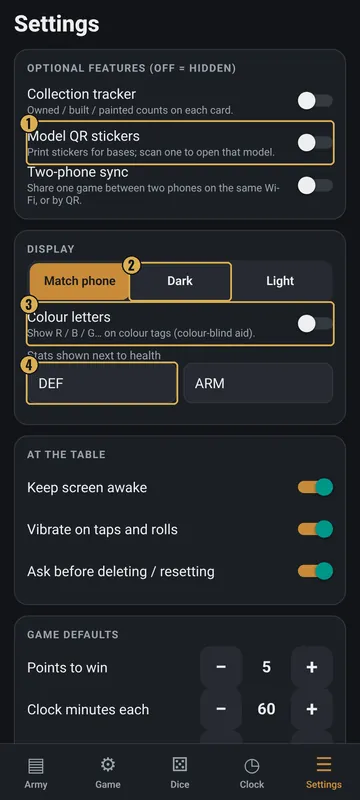
The numbers on the pictures match the list under each picture. Gold boxes show where each thing is.
- Optional features
- Theme: Match phone / Dark / Light
- Colour letters
- Stats shown next to health
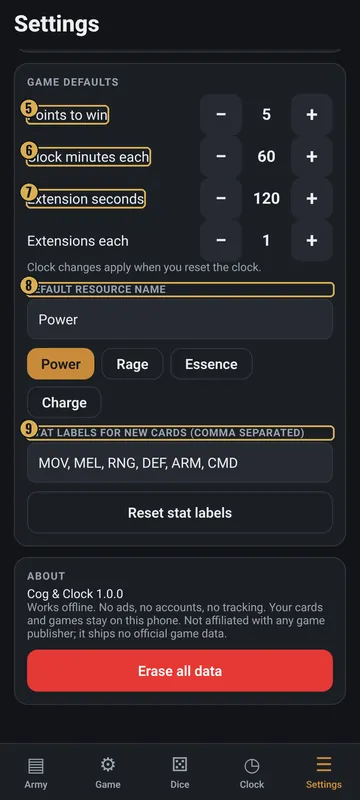
- Points to win
- Clock minutes each
- Extensions
- Default resource name
- Stat labels for new cards
Top
- Optional features (off = hidden)
- Collection tracker, Model QR stickers and Two-phone sync. All start off.
- Display
- Match phone, Dark or Light. Colour letters. Two boxes for the stats shown next to health (DEF and ARM at first).
Middle
- At the table
- Keep screen awake, Vibrate on taps and rolls, and Ask before deleting / resetting.
- Game defaults
- Points to win, Clock minutes each, Extension seconds, Extensions each, Default resource name (with Power, Rage, Essence and Charge buttons), and Stat labels for new cards. Reset stat labels puts the first ones back.
Bottom
- About
- The app name and version, and a note that it works offline with no ads or accounts.
- Erase all data
- Deletes all cards, armies, the current game and settings. It asks first.
Why it matters in the game
- Points to win and clock time change how long the game lasts.
- QR stickers let you scan a model's base to open its sheet right away.
What the words and numbers mean
- Optional feature
- An extra you can turn on. When it is off, its buttons are hidden.
- Model QR stickers
- Tiny printed codes for model bases, 8 to 15 mm, on Letter or A4 paper. Scan one to open that model.
- Two-phone sync
- Share one game with a phone on the same Wi-Fi, or by QR codes.
- Collection tracker
- Counts owned, built and painted models on each card.
- Points to win
- The score that wins the game. It starts at 5.
- Extension
- Extra clock time a player can add.
- Resource name
- The name for leader points, like Power.
- Stat labels
- The stat names new cards start with.
Good to know: undo and saving
- Settings save as soon as you change them.
- Erase all data can't be undone.
- Turn off Ask before deleting / resetting only if you are sure. Then resets happen right away.
- Nothing leaves your phone. The camera is only used to read QR codes.