Cog & Clock: Battle Tracker › How each tab works › Clock
Tab 4 of 5 · Cog & Clock
The Clock tab
What this tab is for
The Clock tab is a chess clock. Each player has their own time, and only one clock runs at a time.
Tap a heading below to open or close it. The page remembers which ones you left open.
When you'd use this tab
Use the Clock tab when:
- You play a timed game, like a tournament.
- You want each player to get the same amount of time.
- Someone needs a short break, so you pause.
Why use the app for this
Doing it by hand works, but the app makes it easier:
- No chess clock to buy or carry.
- Each half of the screen faces one player. The top half is upside down for the player across the table.
- Pause, reset and extra time are one tap.
How to use it, step by step
Try it: Player 1 finishes setting up, and Player 2 takes the first turn.
- Open the Clock tab. Each side shows 1:00:00, which is 60 minutes.
- Player 1 taps their side, the bottom half. Player 2's clock starts and turns gold.
- When Player 2's turn ends, Player 2 taps their side. Now Player 1's clock runs.
- Need a break? Tap Pause in the middle. Tap Resume to go on.
- Need more time? Tap +120s on your side. It adds 2 minutes, once per game.
Where things are on the screen
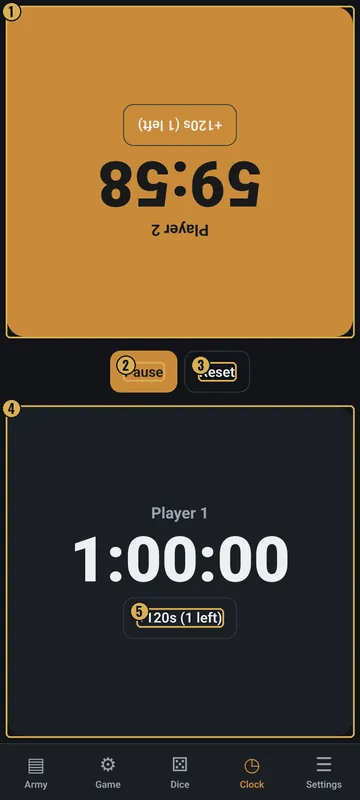
The numbers on the pictures match the list under each picture. Gold boxes show where each thing is.
- Player 2's side (upside down)
- Pause / Resume
- Reset
- Player 1's side
- Extra time
Top
- Player 2's side
- The top half, turned upside down so it faces the player across from you. It shows the name and time left.
Middle
- Pause / Resume
- Stops or restarts the running clock. Before the game starts, it says “Tap your side when your turn ends”.
- Reset
- Puts both players back to the starting time. It asks first.
Bottom
- Player 1's side
- The bottom half, facing you.
- Extra time button
- Like “+120s (1 left)”. Adds time to that player.
Why it matters in the game
- A clock keeps games fair and on time. Nobody can take forever on a turn.
- If a player's time runs out, their side turns red.
What the words and numbers mean
- Chess clock
- Two timers. When you finish, you tap to start the other player's timer.
- 1:00:00
- Hours, minutes and seconds left. This is 1 hour.
- Pass
- Tap your running side to hand the turn to the other player.
- Pause
- Stops the clock for both players.
- Extension
- Extra time you can add. It starts at 120 seconds, 1 per player.
- Red side
- That player's time has run out.
Good to know: undo and saving
- Clock taps go into the Game tab's Undo list, so you can take back a mistake there.
- The clock is saved with the game.
- Change the minutes and extra time in Settings, under Game defaults. Changes start when you reset the clock.