Skirmish Dice: Strange Front › How each tab works › Dice
Tab 1 of 6 · Skirmish Dice: Strange Front
The Dice tab
What this tab is for
The Dice tab is your dice cup. You pick the dice, tap ROLL, and the app counts the hits for you.
Tap a heading below to open or close it. The page remembers which ones you left open.
When you'd use this tab
Use the Dice tab when:
- Your soldiers shoot, and you need to roll one die for each shot.
- You roll to see if a hit does damage, or if a soldier is saved.
- You take a test, like 2d6 that must be 9 or less to pass.
- You roll a big pile of dice and don't want to count them by hand.
- Your rules say to roll rift dice too. You can roll them in the same tap.
Why use the app for this
Doing it by hand works, but the app makes it easier:
- Counting 20 dice by hand is slow. The app counts the hits in a blink.
- Dice can't fall off the table or land tilted.
- Every roll is fair. The app uses your phone's secure random numbers.
- The last rolls are kept in History, so you can check a roll later.
- You can save a roll you use a lot as a preset, so you set it up only once.
How to use it, step by step
Try it: your squad fires 6 shots and needs 4 or more to hit.
- Open the Dice tab. Make sure Roller is picked at the top.
- Find the d6 row. Tap +5 once. Now the pool has 6 dice. (Use + and − to add or take away one die.)
- Under Success, turn on Count successes. Set Target per die to 4+ with the + and − buttons.
- Tap the big ROLL button. The dice tumble and land.
- Read the big number. “3 / 6 successes” means 3 dice hit.
- Missed one you can reroll? Tap that die. Or tap Reroll fails to reroll every miss at once.
- Want this roll again later? Tap Save preset and type a name, like “Rifles”.
Where things are on the screen
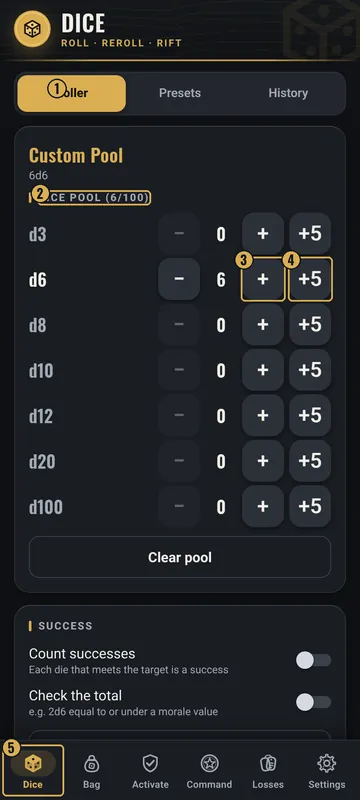
The numbers on the pictures match the list under each picture. Gold boxes show where each thing is.
- Roller / Presets / History
- Your dice pool
- − and + for one die
- +5 adds five dice
- Dice tab
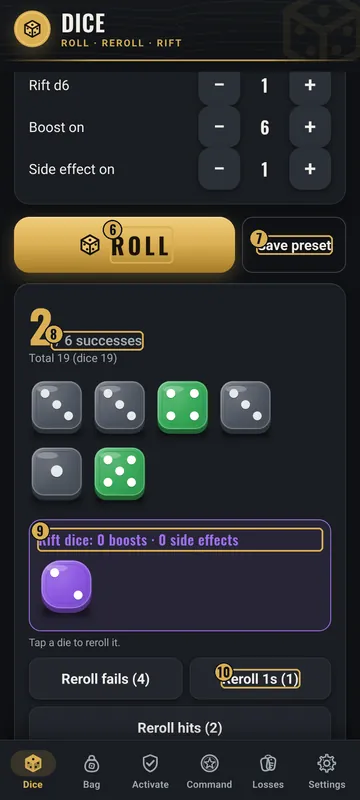
- ROLL button
- Save preset
- Your result
- Rift dice results
- Reroll buttons
Top
- Dice header
- The tab name. It stays at the top.
- Roller / Presets / History
- Three buttons in a row. Roller builds and rolls dice. Presets holds saved rolls. History lists past rolls. A fourth button, Rift ref, shows up if you turn it on in Settings.
Middle
- Dice pool card
- One row for each die type: d3, d6, d8, d10, d12, d20 and d100. Each row has −, the count, + and +5. The title shows how many dice you have, out of 100.
- Clear pool
- A wide button that empties the pool.
- Success card
- Count successes (an on/off switch) and Target per die. Check the total (a switch) lets you test the total against a value, with “Total ≤ value” or “Total ≥ value”.
- Modifiers & rerolls ▼
- Tap to open more choices: Modifier per die, Modifier to total, Natural 1 always fails, Natural max always succeeds, and Automatic reroll (None, Fails, 1s or Hits).
- Rift dice card
- Rift d6 sets how many purple rift dice to add (up to 20). Boost on and Side effect on set which numbers count as a boost or a side effect.
- ROLL
- The big gold button. It rolls everything in the pool.
- Save preset
- The plain button next to ROLL. It saves this pool with a name.
Bottom
- Result card
- Shows up after a roll. A big number shows the hits (or the total). Under it you see each die. PASS or FAIL shows if you used Check the total.
- Reroll buttons
- Reroll fails, Reroll 1s and Reroll hits. The number in ( ) tells how many dice each one will reroll.
- Tab bar
- The row of six tabs at the very bottom. The gold one is the tab you are on.
Why it matters in the game
- Hits decide who gets hurt. Getting the count right keeps the game fair for both players.
- Fast rolls keep the game moving, so nobody waits around.
- Crits and fumbles are marked, so you don't miss a special result.
What the words and numbers mean
- d6
- A die with 6 sides. The number after the d is the number of sides. A d20 has 20 sides. A d3 gives 1, 2 or 3.
- 2d6
- Roll two d6 and add them up.
- Dice pool
- All the dice you will roll in one tap. You can mix types, up to 100 dice.
- Target (4+)
- The number a die needs to succeed. 4+ means a 4, 5 or 6 works.
- Success or hit
- A die that made the target. Hits turn green. Misses stay gray.
- Crit (★)
- With Natural max always succeeds on, the top number (like a 6 on a d6) always works. It gets a gold rim and a star.
- Fumble (✕)
- With Natural 1 always fails on, a 1 always misses. It gets a red rim and an X.
- Modifier
- A number added to the roll. +1 per die adds 1 to every die. A total modifier adds to the sum once.
- Reroll
- Roll a die again. The new number replaces the old one.
- Total
- All the dice added together, plus any modifiers.
- PASS / FAIL
- Shows when you test the total against a value.
- Rift dice
- Extra purple d6 you can roll next to your normal dice. They are counted on their own, in a purple box.
- Boost
- A good rift result. By default a 6 is a boost. You can change it, or turn it off.
- Side effect
- A bad rift result. By default a 1 is a side effect. The app shows a red warning: “Side effect! Apply your rules.”
- Preset
- A saved roll with a name. Built-in presets come with the app.
- History
- A list of your last rolls with the time. ✓ means a hit and ✗ means a miss.
Good to know: undo and saving
- Rerolls replace the old result. There is no undo for a roll, but the old roll stays in History.
- Your pool, presets and roll history are saved on your phone. They are still there next time.
- History keeps your last 200 rolls. You can pick 50, 200 or 500 in Settings.
- Clear history asks first, then deletes every saved roll.
- Presets: tap one to load it. Your own presets have a Delete button. Start an empty pool gives you a blank pool.
- Dice too slow? Set Dice animation to Off or Fast in Settings.
- Turn on Rift quick-reference in Settings to get Rift ref: your own short notes. You can add, edit, move or delete notes.
All Skirmish Dice: Strange Front tab guides · Back to the Skirmish Dice: Strange Front page